Why an Ergonomic Home Workspace Matters
Working from home has become part of everyday life for many people. Yet a large number of home offices are improvised spaces: a laptop on the kitchen table, a dining chair used for eight hours straight, or work done from the couch or bed. Over time, this kind of setup can lead to neck pain, back pain, shoulder tension, headaches, and even long-term musculoskeletal disorders.
Designing an ergonomic workstation at home is not only about comfort; it is about protecting your health and maintaining productivity over the long term. An ergonomic setup helps your body stay in a neutral, relaxed position, reducing strain on muscles, joints, and tendons. Whether you have a separate home office or only a corner of a room, a few targeted changes to your furniture, equipment, and habits can make a major difference.
Key Principles of Home Office Ergonomics
Before choosing a chair or adjusting your screen, it helps to understand the basic principles of ergonomics. These ideas will guide every decision you make about your home office.
Ergonomics focuses on adapting your work environment to your body, not the other way around. The goal is to keep your joints in neutral positions and to spread physical effort across different muscle groups, instead of overloading a single area such as your neck or lower back.
In practice, this means paying attention to:
- Posture: keeping your spine aligned, shoulders relaxed, and joints at comfortable angles.
- Support: using a chair and desk that support your body rather than forcing you to hunch or stretch.
- Repetition: reducing repetitive motions or awkward positions that are held for long periods.
- Movement: integrating regular movement and micro-breaks into your workday.
- Environment: managing light, noise, and temperature so your body does not need to compensate.
When these principles are respected, the risk of neck strain, carpal tunnel syndrome, tendonitis, and chronic back pain decreases significantly.
Choosing an Ergonomic Chair for Home
The office chair is often the foundation of a healthy home workspace. A good ergonomic chair helps maintain the natural curve of your spine and supports you during long periods of sitting.
Key features to look for in an ergonomic desk chair include:
- Height adjustability, so your feet rest flat on the floor and your thighs are roughly parallel to the ground.
- Lumbar support that follows the curve of your lower back, preventing slouching and pressure on the spine.
- Adjustable backrest tilt and tension, allowing you to lean back slightly and change position during the day.
- A seat pan with enough depth so that there is a small gap (about two to three fingers) between the front edge of the seat and the back of your knees.
- Padded armrests that can be adjusted in height and sometimes width, so your shoulders can stay relaxed.
If you are not ready to invest in a specialized ergonomic office chair, there are still ways to improve your current seating. You can add a separate lumbar cushion, use a seat wedge to tilt your pelvis slightly forward, or place a folded towel at the back of the seat for additional support. A footrest, or even a firm box, can help if your chair cannot be lowered enough for your feet to lie flat on the floor.
Optimizing Desk Height and Layout
The height and depth of your desk play a significant role in preventing shoulder and neck pain. When your desk is too high, your shoulders lift and tense. When it is too low, you tend to hunch forward.
An ergonomic desk setup follows these general guidelines:
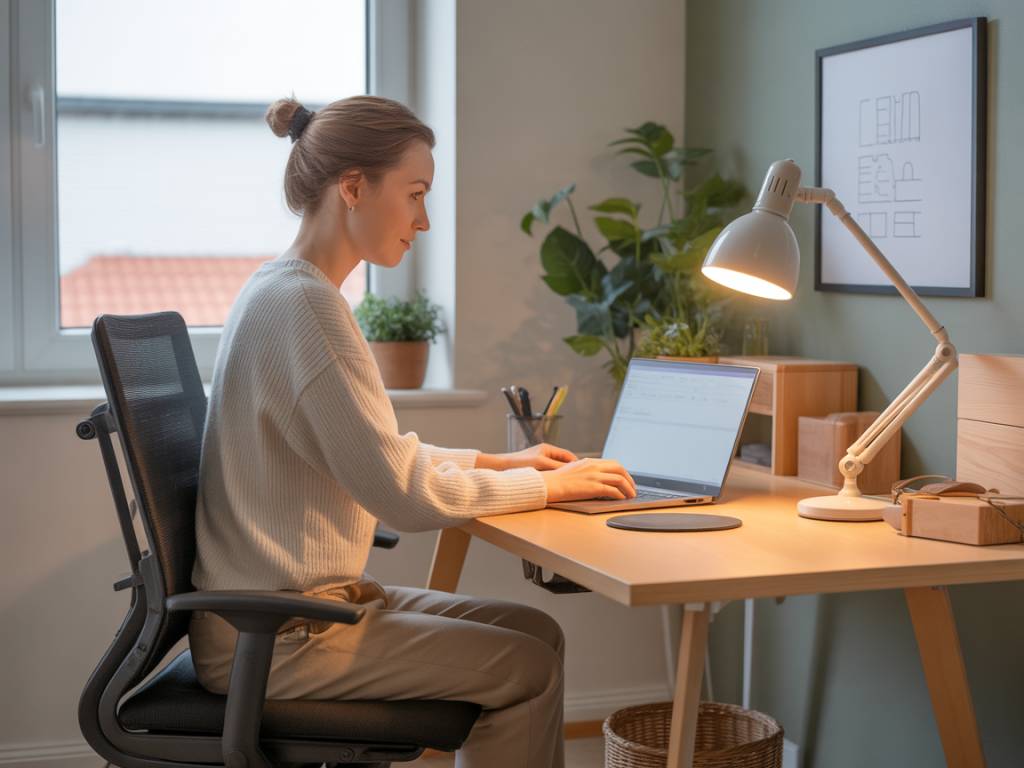
- Your forearms should be roughly parallel to the floor when typing, with elbows bent around 90 to 100 degrees.
- Your shoulders should remain down and relaxed, not pulled up towards your ears.
- Your wrists should not be bent dramatically up or down; they should stay in a neutral, straight position.
- Frequently used items (keyboard, mouse, notebook, phone) should be within easy reach to avoid repeated stretching.
If your current table is too high, you can compensate by raising your chair and using a footrest. If the desk is too low, you may be able to add risers under the legs. Some people choose a sit-stand desk or a desk converter that sits on top of an existing table, allowing them to alternate between sitting and standing during the day.
Setting Up Your Screen to Protect Your Neck and Eyes
Screen position is one of the most common causes of neck and upper back pain in a home office. A laptop placed flat on a table forces you to look down, which increases strain on the cervical spine. Over time, this can lead to headaches, shoulder pain, and eye fatigue.
To create an ergonomic monitor setup at home, aim for the following:
- The top of the screen should be at or slightly below eye level when you sit upright.
- The screen should be at arm’s length away (usually 50–70 cm), depending on screen size and your vision.
- The center of the display should be about 15–20 degrees below your eye level for a comfortable gaze angle.
- The monitor should be placed directly in front of you, not off to one side, to avoid twisting your neck.
If you work primarily on a laptop, an external monitor or a laptop stand can dramatically improve ergonomics. Pairing a laptop stand with an external keyboard and mouse creates a more traditional desktop configuration, reducing neck bending and wrist strain.
Positioning Keyboard and Mouse to Reduce Wrist and Shoulder Strain
The keyboard and mouse are in constant use throughout the workday, so their placement strongly influences your comfort and risk of injury. Poor positioning can cause tension in the wrists, elbows, and shoulders, and may contribute to repetitive strain injuries.
Key recommendations for keyboard and mouse ergonomics include:
- Place the keyboard directly in front of you, aligned with the center of your body and screen.
- Keep your elbows close to your body, with your forearms level and wrists straight.
- Avoid resting your wrists or forearms on hard edges; use a soft wrist rest if necessary but do not press heavily on it.
- Keep the mouse close to the keyboard so you do not have to reach forward or to the side.
- Consider an ergonomic mouse shape, vertical mouse, or trackball if you experience wrist or forearm pain.
Some users benefit from split ergonomic keyboards or low-profile (scissor or mechanical) models that reduce wrist extension. If you often use keyboard shortcuts, you can reduce repetitive mouse movements and share the workload between hands.
Managing Lighting, Glare, and Screen Fatigue
A home workspace that is poorly lit or subject to glare can cause eye strain, headaches, and even encourage awkward postures as you lean forward to see better. Ergonomic design also includes visual comfort and appropriate lighting.
To minimize eye fatigue in your home office:
- Place your screen perpendicular to windows if possible, to reduce reflections and glare.
- Use blinds or curtains to control direct sunlight on the screen.
- Combine ambient lighting (ceiling light, floor lamps) with task lighting (desk lamp) to avoid strong contrasts.
- Set your screen brightness close to the brightness of your surroundings so your eyes do not need to constantly adapt.
- Follow the 20-20-20 rule: every 20 minutes, look at something 20 feet away for at least 20 seconds.
Blue light filters, either in software or on glasses, may help some users, especially during evening work. However, the most impactful changes are usually screen position, glare reduction, and regular visual breaks.
Incorporating Movement and Breaks into Your Day
Even the most perfectly adjusted ergonomic workstation cannot compensate for staying in the same position for hours. The human body is made to move, and static postures can still cause discomfort and stiffness. Movement is a core component of a healthy home working routine.
Practical strategies to integrate more movement include:
- Setting a reminder every 30 to 60 minutes to stand up, stretch, or walk for a few minutes.
- Alternating between sitting and standing if you have a height-adjustable desk or a standing desk converter.
- Doing simple stretches for the neck, shoulders, wrists, hips, and lower back throughout the day.
- Using phone calls as an opportunity to walk around, when possible.
- Including short exercise sessions before or after work to maintain general mobility and strength.
These micro-breaks do not have to be long; even one or two minutes of movement can relieve muscle tension, stimulate circulation, and help you return to your tasks with better concentration.
Adapting Ergonomics to Small Spaces and Shared Rooms
Not everyone has a dedicated home office. For many people, the workspace is a corner of the living room, the bedroom, or the kitchen table. Ergonomics is still possible in these conditions, but it may require more flexible and portable solutions.
Ideas to improve ergonomics in small or shared spaces include:
- Using a compact adjustable chair that can slide under the table when not in use.
- Choosing a folding or wall-mounted desk that provides the right height without taking up permanent floor space.
- Relying on portable accessories such as a laptop stand, external keyboard, and mouse that can be quickly set up and stored.
- Creating a simple daily ritual to “set up” and “pack away” your workspace, helping both posture and mental separation between work and personal life.
Even if your desk is temporary, maintaining key ergonomic principles—neutral wrist position, eye-level screen, lumbar support—will help reduce the risk of pain and injury over time.
When to Consider Professional Advice and Specialized Products
Many people can significantly improve their comfort with basic ergonomic adjustments and a few accessories. However, if you experience persistent or severe pain, numbness, or tingling in your hands, arms, neck, or back, it may be wise to consult a health professional, such as a physiotherapist or occupational health specialist.
These professionals can evaluate your posture, identify specific risk factors, and recommend targeted exercises or specialized equipment. For some people, products such as sit-stand desks, advanced ergonomic chairs, or custom keyboard setups are not just a comfort choice but a necessary part of preventing further injury.
Transforming your home office into an ergonomic workspace is an ongoing process rather than a one-time upgrade. As your tasks, equipment, and body change, it is useful to regularly reassess your setup. Small, thoughtful adjustments—aligned with the principles of ergonomics—can protect you from many common work-from-home pains and help you maintain both health and productivity over the long term.